Unicode to Kruti Dev Converter Online

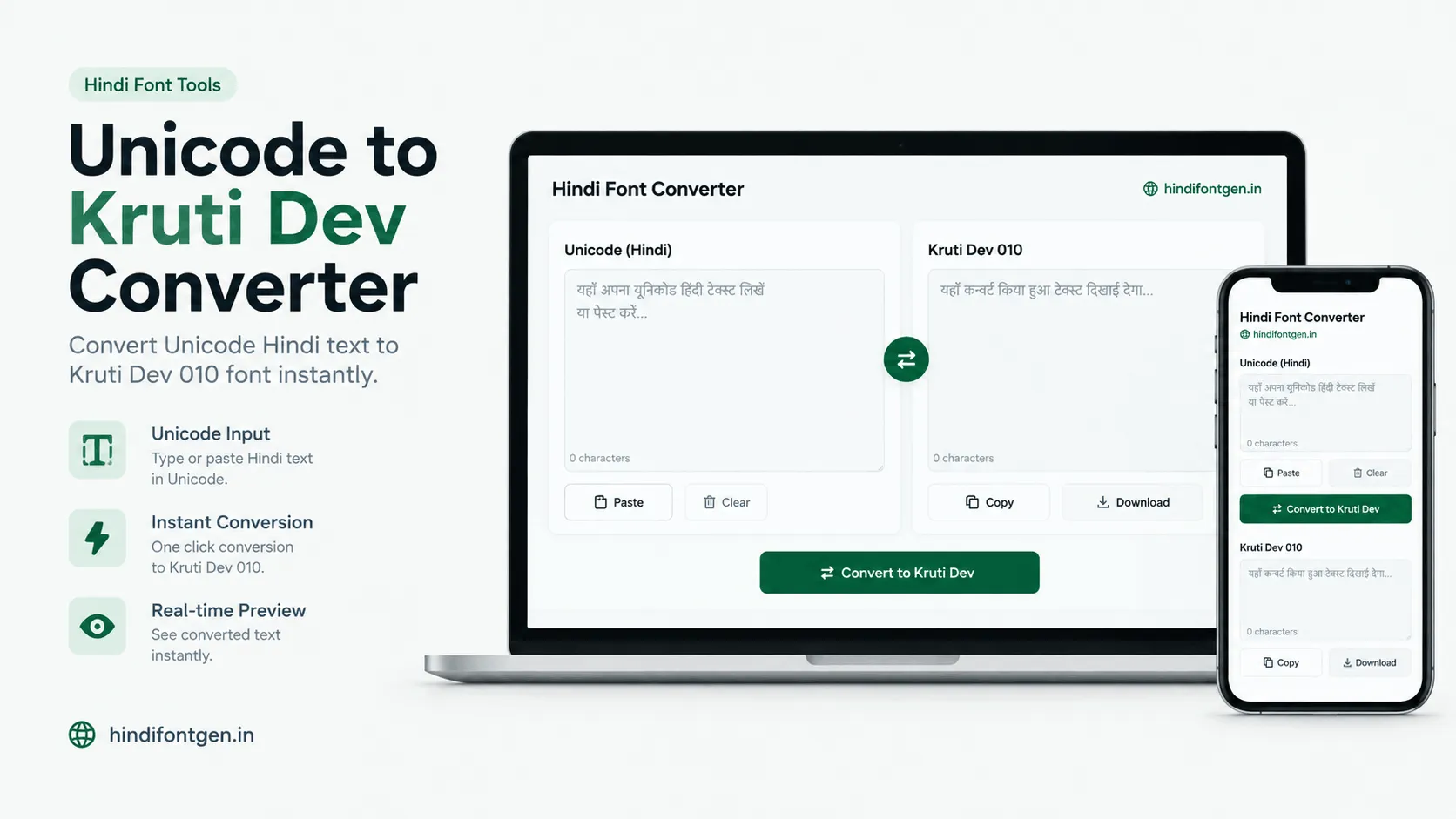
Typed your Hindi on a phone or in Google Docs, but the office, print shop or typing task wants Kruti Dev 010? Paste it below and get the Kruti Dev version. Old Kruti Dev files that show strange symbols can be turned back into readable Unicode with the switch button.

TEXT CONVERTER

Convert your Hindi text

Try a short sentence first, check it in your own software, and then convert the full document.

Runs in your browser
Unicode (Mangal) — Source
0 characters · 0 words
Kruti Dev 010 — Output
0 characters · 0 words

Why does the output look like English? Kruti Dev output is made of ordinary Latin characters. It turns into Hindi only after you paste it into software and apply the Kruti Dev 010 font.

Copied!
Background

What Kruti Dev is, and why it is still around

Before Unicode worked reliably on Windows and the web, Hindi in a computer meant a special font. Fonts like Kruti Dev, Chanakya, DevLys and Walkman Chanakya did not contain a separate code for each Devanagari letter. They borrowed the English keyboard codes and drew a Hindi shape in place of each one. Type ueLrs with Kruti Dev selected and the screen shows नमस्ते. Type the same keys in a normal font and you only see English letters.

Unicode fixed this by giving every Hindi letter its own permanent code. That is why Unicode Hindi can be searched, copied between apps, read on any phone and indexed by Google, with no special font installed.

Kruti Dev did not disappear, though. Many printing presses, court and government offices, newspaper layouts and typing institutes built their files, templates and habits around it, and the Remington-style keyboard that goes with it. If you receive Unicode text (from WhatsApp, a website, a client's email) and the final file has to be in Kruti Dev, you need to convert it. If you have an old Kruti Dev file and want to put it online or share it on a phone, you need to go the other way. This page handles both.

Two things that surprise first-time users

  • The text does not carry the font with it. The characters in a Kruti Dev file are ordinary English letters. If the font is missing on the next computer, the Hindi disappears and only the letters remain.
  • Hindi is not typed in the order you read it. In Kruti Dev the ि matra and the reph (र्) follow different positions than in Unicode, so a converter has to reorder characters, not just swap one for another.
Choosing a format

When to use Unicode and when to use Kruti Dev

Pick the format the destination needs. Converting everything to Kruti Dev "just in case" usually creates problems later.

Use Unicode for

Anything that will be shared or searched

  • Websites, blogs, email and messaging apps
  • Google Docs, Sheets and online forms
  • Files you want others to open on any device

Never publish a web page in Kruti Dev. Search engines read the Latin letters, not the Hindi, so the page cannot be understood or found.

Use Kruti Dev 010 for

Workflows built around the legacy font

  • Print layouts in CorelDRAW, PageMaker or InDesign templates already set in Kruti Dev
  • Office formats that specify Kruti Dev 010
  • Practice for typing tests that name it

Confirm the exact font name first. DevLys, Chanakya and other Kruti Dev versions use different key maps.

Step by step

How to convert Unicode to Kruti Dev

1

Paste your Unicode text

Paste or type it in the left box. Text from WhatsApp, a website, Word or a phone keyboard all works. The right box updates as you type.

2

Look at the output

You will see a mix of English letters and symbols. That is expected. The Hindi shapes only appear once the font is applied.

3

Copy or save

Press Copy to put it on the clipboard, or Save to download a .txt file. A .txt file is safest for long text because it carries no formatting.

4

Apply the font in your software

Paste into Word, Excel, CorelDRAW or similar, select the text and choose Kruti Dev 010 from the font list. The font has to be installed on that computer.

5

Proofread in the final application

Compare a few lines against the original before printing or submitting. Pay special attention to names, numbers and rare conjuncts.

How the conversion works

Key chart and worked examples

These are the key positions behind the tool, so you can sanity check any output yourself.

Consonants

UnicodeKruti Dev key
क ख ग घd   [k   x   ?k
च छ ज झp   N   t   >
ट ठ ड ढ णV   B   M   <   .k
त थ द ध नr   Fk   n   /k   u
प फ ब भ मi   Q   c   Hk   e
य र ल व;   j   y   o
श ष स ह'k   "k   l   g

Vowels, matras and signs

UnicodeKruti Dev key
अ आ इ ईv   vk   b   bZ
उ ऊ ए ओ औm   Å   ,   vks   vkS
ा ी ु ूk   h   q   w
े ै ो ौs   S   ks   kS
ि (choti ee)f (typed before the letter)
ं ः ँa   %   ¡
।A

Three rules that cause most of the reordering

  • The choti ee matra (ि) comes after the consonant in Unicode, but in Kruti Dev the key f is typed before it. So हिन्दी becomes fgUnh, with f first.
  • Reph (र्) is drawn on top of a letter. In Kruti Dev it is typed after that letter as Z. So कर्म becomes deZ.
  • Half letters and conjuncts have their own keys. स् is L, ज्ञ is K and श्र is J.
Unicode wordKruti Dev keysWhat to notice
रामjkeर = j, ा = k, म = e
भारतHkkjrभ = Hk, then ा = k
हिन्दीfgUnhि (f) moves before ह; half न = U
नमस्तेueLrshalf स = L, े = s
कर्मdeZreph is typed after म as Z
धर्म/keZध = /k, reph again as Z
ज्ञानKkuज्ञ is a single key, K
श्रमJeश्र is a single key, J

The sample sentence already loaded in the tool, नमस्ते दोस्तों, आपका स्वागत है, converts to ueLrs nksLrksa, vkidk Lokxr gS.

After converting

Using the converted text in your software

  • MS Word and LibreOffice Writer: paste, select the text and set the font to Kruti Dev 010. Keep English words, numbers in English and email addresses in a normal font, otherwise they also turn into Hindi shapes.
  • Excel: paste into the cell, then change the font of that cell, row or column from the Home tab. Sorting and filtering will follow the Latin letters, not Hindi alphabetical order.
  • CorelDRAW, PageMaker, InDesign and Photoshop: paste into a text box and choose Kruti Dev 010 from the font list. Some layout programs re-map fonts when opening files on another machine, so keep the font installed there too.
  • Google Docs and phones: Kruti Dev is not available there, so the text stays as symbols. Do your Kruti Dev work in Word or LibreOffice on a computer.
  • Installing the font: on Windows, right-click the .ttf file and choose Install. Only use font files from a source you trust, and check the licence if the work is commercial.
The other direction

Converting old Kruti Dev files to Unicode

Press the switch button below the two boxes. The left box now expects Kruti Dev text and the right box shows Unicode. Paste the text exactly as it looks without the font, as in deZ, not as the Hindi you see after applying the font.

  • Copy the text out of the original file as plain text first. Copying from a PDF often mixes characters up, so test a short line before trusting a long paste.
  • English words inside the same paragraph will also be read as Kruti Dev and changed. Convert the Hindi parts separately if the document mixes both languages.
  • If the pasted text already shows proper Hindi, it is already Unicode and does not need converting.
  • Proofread names, numbers and dates. They are the most expensive things to get wrong.
Troubleshooting

Common problems and quick fixes

  • I only see English letters: the Kruti Dev 010 font is not installed, or it is not applied to that text. Select the text and set the font again.
  • The ि matra or reph sits in the wrong place: another Kruti Dev version or a different Hindi font is applied. Switch to Kruti Dev 010.
  • English words turned into Hindi shapes: select just those words and change them back to a regular font.
  • A rare conjunct looks odd: unusual letter combinations differ between fonts. Fix that one letter by hand in your document.
  • Text copied from a PDF looks garbled: PDFs often store Hindi in a broken order. Retype a short sample to compare.
  • The file looked right but is wrong on another computer: that computer does not have Kruti Dev 010. Install the font there, or send a PDF with fonts embedded.
Before you submit

A short checklist for important documents

01

Test a small sample first

Convert two or three lines with matras, half letters, a name and some punctuation, and check them before doing the whole file.

02

Match the exact font

Use Kruti Dev 010. If an office asks for another version, results can differ in a few glyphs.

03

Re-read names, dates and amounts

Compare these against the source line by line. Automatic conversion cannot know when a name is spelled unusually.

04

Keep the original text

Save the Unicode source before replacing anything, so you can reconvert if a mistake is found.

Please note: this converter follows the Kruti Dev 010 layout and works with rules, not by reading meaning. Very rare combinations may need a manual fix. For court, government, exam or print work, follow the receiving office's format instructions and proofread the final file in the application that will open or print it. Your text is converted in your browser and is not sent to a server.

About Author

Ali Hamza, creator of HindiFontGen

Ali Hamza

Hi, I’m Ali Hamza, the guy behind HindiFontGen. I got tired of switching between a dozen sites just to find a good Hindi font, so I built one place where you can see your text in every style. Got feedback or spotted a bug? Mail me at contact@hindifontgen.in.

Frequently asked questions

Unicode gives each Hindi letter its own code, so the text is readable and searchable anywhere. Kruti Dev stores English keyboard characters and relies on a font to draw Hindi shapes in their place, so it only reads correctly where the font is installed.
That is how Kruti Dev works. Paste the text into Word or a similar desktop program and apply the Kruti Dev 010 font, and the Hindi appears.
It is not recommended. Search engines and screen readers see Latin letters, and visitors would need the font installed. Use Unicode for anything published online.
Yes. Press the switch button below the boxes and paste your Kruti Dev text, exactly as it looks without the font, into the left box.
The tool is built for Kruti Dev 010. Other fonts use different key maps, and even other Kruti Dev versions can differ for some glyphs, so test a short sample before converting a long document.
You can convert on a phone, but Google Docs and most phones do not include Kruti Dev, so the result will look like symbols. Open it in Word or LibreOffice on a computer that has the font.
Common Devanagari letters convert the same way. Marathi-specific letters and conjuncts should be checked by hand after conversion.
No. The conversion runs in your browser and the text is not sent to a server.
There is no fixed limit and no signup. For very large documents, convert in sections so the page stays responsive and proofreading is easier.